

Figma MCP Server: What It Does and How to Use It
Frontend Development
September 29, 2026•2 min read

I hope you enjoy reading this post. If you want us to do your frontend development or design, click here.
Author: Pavlo Tyshchenko | COO at The Frontend Company
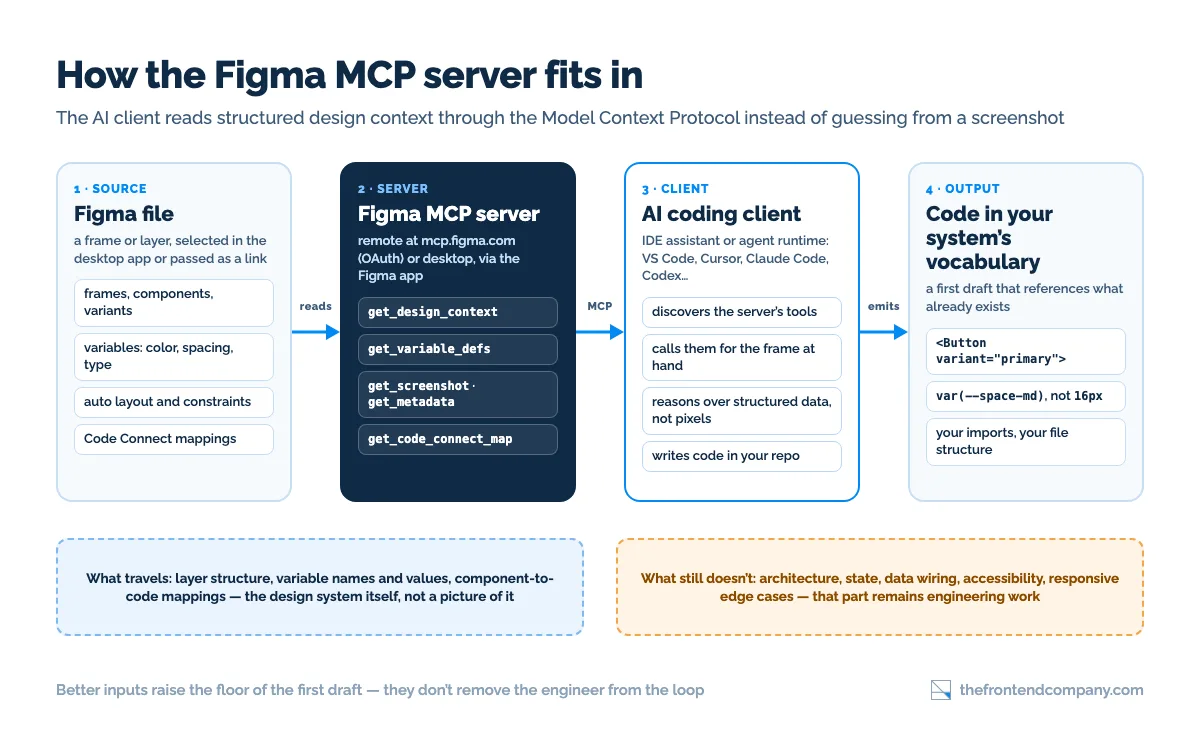
The Figma MCP server connects AI coding tools to your actual design files. Instead of guessing a UI from a screenshot, the model reads real design context - components, variables, layout, Code Connect mappings - straight from Figma through the Model Context Protocol. It is Figma's official server: launched in beta in June 2025 as the Dev Mode MCP server and generally available since Schema 2025 in October 2025, in two forms - a remote server at mcp.figma.com that needs no desktop app, and a desktop server that runs inside the Figma app. The result, when it's set up right, is generated code that uses your design system's names and values rather than inventing its own. We use it on client work; this guide covers what it actually does, how to set it up, and where its limits are.
New to the protocol itself? Start with What is an MCP server - this piece assumes the basics: a host application, an MCP client inside it, and a server exposing tools the model can call.
What does the Figma MCP server actually do?
It exposes design context as tools an MCP client can call. The current tool list is long - reading, writing, even running Figma Weave tools - but four read tools do most of the design-to-code work:
- get_design_context - the default entry point: structured, code-oriented context for a frame or layer - layers, components, variants, auto layout - instead of pixels.
- get_variable_defs - the variables and styles used in that selection: colors, spacing, typography - so generated code can reference the system instead of hardcoding hex values.
- get_screenshot and get_metadata - a fidelity-check image of the selection, and a sparse XML outline of a file's structure for when the model needs to navigate before it reads.
- get_code_connect_map - where Code Connect is configured (Organization and Enterprise plans, Full or Dev seat), the server points the model at YOUR component implementations: import statements, usage examples, current property values. That is the difference between output that looks similar and output that uses your actual Button.
The server writes now, too. The write-to-canvas tools, still in beta, let an agent create frames, components, variants, variables and auto layout in a Design file, and the general-purpose use_figma tool covers Design, FigJam and Slides - remote server only, Full seat required, free during the beta and slated to become a usage-based paid feature. Useful, and a different article: this one is about the read direction, which is where design-to-code lives.
The shift is subtle but important: screenshot-driven generation produces plausible UI; context-driven generation produces YOUR UI - or at least a much closer first draft.
What can you build with it?
Four workflows that hold up in practice:
- Design-to-code first drafts. Select a frame (desktop server) or paste its link (remote server) and ask the assistant to implement it - with variables and Code Connect mappings in place, the draft lands in your system's vocabulary. What a handoff-ready file looks like before any tool touches it is covered in our Figma-to-React guide.
- Component-aware iteration. "Make this match the card component from the design" stops being a guess - the model can look.
- Design QA. Compare an implemented screen against the file: spacing, type scale, missing states - the tedious diff a reviewer half-does. get_screenshot next to the running app is the cheapest visual check you will get.
- Token sync checks. Catching hardcoded values that should reference variables, before design-system drift accumulates - get_variable_defs is the source of truth.

Transform your UI for peak performance!
🔹
Unlock seamless, high-performance frontend solutions tailored to your business.
🔹
Get an interface that outshines competitors and delights your users.
How do you set it up?
Five steps, from Figma's setup docs as of September 2026:
- Confirm access. The remote server is available on all seats and plans; the desktop server needs a Dev or Full seat on a paid plan. Usage is rate-limited by seat: a Starter plan gets 20 tool calls a month, View and Collab seats on paid plans get 6 a month, and Dev and Full seats get a daily quota in the hundreds (200 a day on Professional) plus a per-minute cap. Anything beyond a quick trial needs a Dev or Full seat.
- Pick remote or desktop. Figma recommends the remote server - https://mcp.figma.com/mcp, OAuth sign-in, no desktop app, the broadest tool set. The desktop server is enabled inside the Figma desktop app: switch to Dev Mode, open the MCP server section of the inspect panel, click Enable desktop MCP server; it then listens at http://127.0.0.1:3845/mcp. Figma for Government supports the desktop server only.
- Add the server in your client. Only clients in Figma's MCP catalog can connect - about two dozen today, including VS Code, Cursor, Claude Code, Claude Desktop, Codex, Xcode and GitHub Copilot CLI. In Claude Code: claude mcp add --transport http figma https://mcp.figma.com/mcp, then /mcp to sign in (or install the figma plugin from the official marketplace). In Cursor: /add-plugin figma. In VS Code: MCP: Open User Configuration, add the server URL, click Start and authorize. In Codex: codex mcp add figma --url https://mcp.figma.com/mcp. For the desktop server, swap in the local URL.
- Test with one frame and a small ask before pointing it at a real ticket. The remote server needs a link to a frame or layer; selection-based prompting ("implement what I have selected") only works with the desktop server.
- If your team maintains a design system, configure [Code Connect](https://help.figma.com/hc/en-us/articles/23920389749655-Code-Connect) first - map the components you actually reuse, then run the server's create_design_system_rules prompt to generate a rules file your agent reads on every task. It is the single highest-leverage hour in the whole setup.
What it can't do
The honest limits, from using it on real projects:
- It doesn't produce production code. It produces a first draft with correct context. Architecture, state management, data wiring, accessibility, responsive edge cases - still engineering work. The same limits we've written about for Figma-to-Angular tools apply, with better inputs.
- Garbage in, garbage out - now with tokens. A messy file (detached components, magic-number spacing, unnamed layers) generates messy code with confidence. The server transmits your design hygiene, whichever kind you have - and Code Connect only helps for components that are published and mapped.
- Quotas and payload limits are real. Six calls a month on a View seat is a demo, not a workflow. A whole-page selection is a payload the model handles worse than one frame - work frame by frame - and write-to-canvas caps output at 20 KB per call, with no images and no custom fonts.
- Client-file caution. Connecting an AI toolchain to client design files is a data-access decision: agree on it explicitly, scope access to the working file, and treat it like any third-party access grant. The server only exposes files the signed-in account can already open - which is exactly why the seat you sign in with matters.
Want design-to-code that survives production?
We run the Figma MCP server in our daily client workflow - AI-accelerated drafts, engineer-finished components, design systems that stay consistent. Book a call and bring a screen you want built.
How we use it on client work
Figma is our daily tool and the MCP server is part of the daily workflow. On a typical SaaS product engagement it looks like this:
- Designers publish, engineers map. The design system lives as a published library with variables. Where the client's plan includes Code Connect, the first engineering task on a new system is mapping the components that actually get reused; where it doesn't, variables plus a design-system rules file carry most of the weight.
- Frame-sized tasks, engineer-finished. One frame, one ask, one review. The agent drafts markup, tokens and component usage; the engineer wires state and data, handles accessibility and responsive behaviour, and owns the pull request - the same review bar as human-written code.
- QA against the file, not against memory. Before a screen is called done, its screenshot goes next to the design. Spacing and type-scale drift shows up in minutes instead of in the client's review.
- Access is explicit. We connect with the seat the client has granted, scoped to the working files, with the client's explicit OK - and nothing generated ships without a human reading it.
The net effect is not "AI writes the frontend". It's that the first draft starts from the right names and values, so the engineering hours go to the parts that need engineers. If you are building an agent of your own around it, the same rule applies: the server supplies context; your architecture decides what happens with it.
FAQ


Pavlo Tyshchenko is COO at The Frontend Company, where he runs operations, delivery, and the internal systems the company runs on - AI workflows, knowledge infrastructure, and hiring. He writes about AI agents, process automation, and the engineering side of software compliance.
Follow the expert:
LEARN MORE